
Introduction
This toolkit shares some basic guiding principles and resources for creating digital exhibits, as well as some examples of digital exhibits for inspiration.
- There is no right or wrong way to create a digital exhibit.
- Digital exhibits can range from simple to advanced.
- For example, a simple digital exhibit could be a series of images and captions posted on Facebook or a simple website built using a website builder.
- An advanced digital exhibit could consist of a custom website with special features created through coding.
- Please Note: Technology and exhibit practices are constantly changing. This guide is meant to be a starting point, not a definitive authority.
Text
Text Writing Basics
- Make your text readable for a general audience.
- Have a variety of people with different backgrounds, levels of education, etc. look over your text and captions.
- Use Hemingway Editor to test readability. Aim for around a grade 7 or 8 reading level.
- Think carefully about your word choice and how it may affect others.
- Always refer to others using the words they prefer.
- Do not be afraid to do a bit of research to find the most respectful and up-to-date ways of referring to people and groups.
- See this Disability Language Style Guide (also available in Italian) for guidance on writing about disability and people with disabilities.
Using Text in Digital Exhibits
- Different digital exhibits use text differently.
- Some may use longer blocks of text than would typically be seen in a physical exhibit, creating more of a website feel. Examples of digital exhibits with a more text-based approach include:
- Women & Activism in the Westside and British Columbia’s Black Pioneers
- Some digital exhibits focus more heavily on images with captions, often interspersed with quotes and brief blocks of texts, creating more of a physical exhibit feel. These include:
- The Marshalls: A Black History Exhibit and Born of the Indian Ocean are examples of digital exhibits that use shorter text segments.
Layout and Design
- There are as many ways to design and layout exhibits as there are stories to tell.
- Think about what design will be most effective in helping tell the story of your exhibit.
- Look at exhibits focused on themes similar to yours for inspiration.
- Below are some examples of design features that can be used in digital exhibits.
- Timelines: Timelines can be a great way of succinctly capturing events, giving important historical context, and visually representing a story.
- Zorra Men of Might is an exhibit set up entirely as a timeline.
- The exhibit Want: Desire, Design and Depression Era Footwear includes a timeline to help explain larger historical context.
- Virtual Reality Tours: This feature lets a user guide themselves through a three dimensional scene. It also often allows users to click on certain objects or areas for more information.
- The exhibit In Praise of Stuff: The Tenement Museum’s Collections uses this feature to allow users to virtually explore rooms in the Tenement museum.
- Morning Star – Gambeh Then’ is an exhibit composed almost entirely using this feature.
- Maps: Maps can help users visualize geographical information.
- City Builders is an exhibit that uses mapsto help tell its story.
- Do not assume visitors to your digital exhibit will automatically navigate through it the way you intend them to.
- If the story your exhibit tells needs to be told in a particular order, then your exhibit design should ensure it can only be navigated through in that order.
- You can try dividing your exhibit into pages and using “next” buttons and prompts.
Accessibility
- It is important to ensure your digital exhibit is accessible to everyone, including people with disabilities.
- Check this web accessibility checklist to make sure you have the basics covered.
- See this guide to basic accessibility, including web accessibility.
- Also see this introduction to writing good alt text to ensure your exhibit’s images are accessible.
- Browser Extensions can be helpful in making sure your website is accessible.
- Use Accessibility Insights to quickly spot accessibility issues on your website.
- Use Web Disability Simulator in Chrome to see how people with different disabilities experience your website.
- Use Color Contrast Analyzer in Chrome to check that your website’s colour contrast is accessible.
Copyright and Consent
- Copyright and consent are especially important when your exhibit is widely accessible over the internet.
- Do not share information about someone or their history without their consent.
- It is important that people understand and consent to any information you share about them being widely accessible over the internet.
- Do not assume that because someone is comfortable sharing information in a physical exhibit that they will automatically be comfortable sharing it on the internet.
- Make sure any information you share is shared in line with applicable legislation such as the Privacy Act and the Access to Information Act.
- Do not share any content (ex. photographs, artwork, recordings, etc.) in your exhibit unless you are sure you have permission to share it.
- Always follow copyright legislation when sharing content. Copyright in Canada is governed by the Copyright Act.
- See this guide to copyright from the Canadian Intellectual Property Office for more information.
Platforms and Tools
Platforms for Building Digital Exhibits
- Can be used to both host and build websites
- Monthly fee required for professional (no adds, custom domain) websites
- Offers pre-made themes and templates in addition to extensive customization options
- Good for both those who have coding knowledge, and those who do not
- Specially designed to create digital exhibits and showcase digital collections
- Little to no coding knowledge required
- Offers Omeka.net, which handles installation and hosting for a fee
- Omeka S and Omeka Classic require external hosting
- Some universities may allow you to host an Omeka exhibit on their server
- Can be used to build, host, and design websites
- Monthly fee required for websites with custom domains and greater storage capacity
- Offers many free design templates
- Easy to use and good for those with no coding knowledge
- Requires a bit of coding and computer knowledge
- Also good for making online catalogues or documents to accompany physical exhibits
- Can also be used for print documents and ebooks
Tools
- Knight lab
- Provides open source tools to build timelines, story maps, VR tours and more
- Historypin
- Create online collections of text, images, sounds, and videos that are pinned to a virtual map
Additional Resources
Courses
Webinars
Example Digital Exhibits
- Movimento Perpétuo: The Portuguese Diaspora in Canada
- City Builders: Immigrant Construction Workers in Postwar Toronto
- The Story of Italians in Fernie, 1881 – 1921
- In Praise of Stuff: The Tenement Museum’s Collections
- Women & Activism in the Westside
- British Columbia’s Black Pioneers
- The Marshalls: A Black History Exhibit
- Born of the Indian Ocean
- Zorra Men of Might
- Want: Desire, Design and Depression Era Footwear


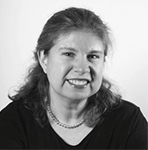



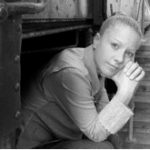 Carrie-Ann Smith est titulaire d’une maîtrise en bibliothéconomie et sciences de l’information de l’Université Dalhousie à Halifax. Elle est devenue membre de la Pier 21 Society à l’été 1998 et occupe actuellement le poste de Device-President, Public Engagement Officer au Musée canadien de l’immigration du Quai 21. Mme Smith (ne vous fiez pas à son nom de famille) est un descendant de Federico et Mabli Artuso de San Martino di Lupari; elle a écrit une histoire sur sa vie de jeune italo-canadienne grandissant à Sault Ste. Marie, Ontario, paru dans Mamma Mia: Good Italian Girls Talk Back (ECW Press). L’objectif de Mme Smith de travailler au Musée, qui est d’aider à recueillir, préserver et faire connaître les souvenirs des immigrants qui sont venus au Canada, la motive également à contribuer au travail de l’ICAP.
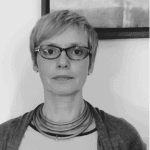 Sandra Parmegiani enseigne les études italiennes et européennes à l’Université de Guelph et a été présidente de la Société canadienne d’études italiennes (juin 2014 à juin 2017). Dans le passé, elle a enseigné la littérature et la langue italiennes au Trinity College de Dublin (Irlande) et à l’Université de Western Ontario. Ses recherches portent sur la littérature et la culture italiennes du XVIIIe siècle et de la période contemporaine. Depuis 2013, grâce à une bourse obtenue de Mitacs, elle encadre des travaux postdoctoraux sur la cartographie des ressources culturelles immatérielles par l’analyse de la culture de la lecture.
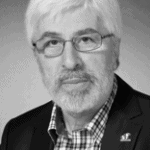 Gabriel Niccoli est titulaire d’un doctorat. en littérature comparée de l’Université de la Colombie-Britannique et professeur émérite d’études médiévales et d’études françaises et italiennes à l’Université St. Jerome, affiliée à l’Université de Waterloo. Il y a dirigé le département pendant dix-sept ans et a reçu le Distinguished Professor Award. Il a publié de nombreux ouvrages sur la théorie dramatique italienne et française des XVIe et XVIIe siècles et sur les écrivaines italiennes de la Renaissance. Il a édité un volume intitulé Ricordi et publié des essais sur des études liées à l’immigration italo-canadienne. Il édite actuellement un recueil d’essais critiques sur le thème du nostos, ou du retour à la maison après un long voyage. Le professeur Niccoli a reçu des honneurs en Italie et au Canada et a été vice-consul honoraire d’Italie en Ontario. Il est très actif comme animateur et promoteur culturel au sein des communautés italo-canadiennes de la côte ouest et de l’Ontario.
 Nancy Marrelli est archiviste émérite à l’Université Concordia et archiviste du nouveau Centre d’archives de la Communauté italo-canadienne du Québec. Elle est co-éditrice de Vehicule Press, une maison d’édition montréalaise. Elle participe activement aux activités professionnelles d’archivage au Canada, aux États-Unis et à l’international; ses travaux et publications en français et en anglais portent sur le droit d’auteur, la conservation, le patrimoine du monde de la danse, divers aspects de l’histoire de Montréal et les archives audiovisuelles. Elle a animé de nombreux ateliers et conférences et anime actuellement une série de webinaires en français et en anglais sur le droit d’auteur pour le Conseil canadien des archives. Mme Marrelli travaille également dans les domaines de la création littéraire et de l’édition.
 Michael Iannozzi est diplômé de l’Université Western. Ses recherches portent sur la documentation linguistique, la sociolinguistique et la sensibilisation du public. Il s’intéresse particulièrement au dialecte anglais du sud-ouest de l’Ontario et aux dialectes italiens des communautés italiennes du Canada. M. Iannozzi travaille avec Caroline Di Cocco pour documenter les histoires de vie de la communauté italo-canadienne de Sarnia, notamment par la numérisation de vieilles photos et bandes, et pour concevoir un site Web pour promouvoir ces morceaux uniques d’histoire. du Canada, un projet soutenu par les archives de Sarnia-Lambton. M. Iannozzi s’identifie autant à un Canadien d’origine italienne qu’à un Canadien d’une petite ville. Ses grands-parents paternels, nés à Castelliri (Frosinone) ont immigré à Sarnia en 1960. Ses grands-parents maternels, agriculteurs depuis 62 ans, fêteront bientôt leur 70e anniversaire de mariage. C’est un honneur pour M. Iannozzi de documenter et de préserver les histoires des Italo-Canadiens.
 Antonella Fanella est née à Milan, en Italie, et a grandi à Calgary, en Alberta. Elle est titulaire d’un baccalauréat ès arts et d’une maîtrise ès arts en histoire de l’Université de Calgary. Pendant 25 ans, elle a été archiviste pour le Glenbow Museum et des établissements postsecondaires. Elle est actuellement consultante en archivistique spécialisée dans l’évaluation des archives, le développement des collections et la migration des documents électroniques. Mme Fanella a publié des ouvrages historiques, notamment With Heart and Soul: Calgary’s Italian Community et de nombreux articles.
 Cristina Caracchini est titulaire d’une maîtrise en littérature italienne de l’Université de Florence et d’un doctorat en littérature comparée de l’Université de Montréal. Elle est professeure agrégée de littérature italienne et comparée à l’Université Western Ontario (UWO) et vice-présidente de l’Association canadienne d’études italiennes (ACEI). Elle est l’auteur de Cognizione e discorso poetico (2009) et de plusieurs articles sur les écrivains italo-canadiens, et co-éditeur, avec Enrico Minardi, du volume Ilpensiero della poesia (2017). Avec des collègues du programme d’études italiennes, Mme Caracchini a organisé des événements communautaires parrainés par l’UWO et la communauté italo-canadienne à Londres, y compris la conférence nationale ICAP en 2016.


 Secretario
 Dr. Pietro Pirani is an Assistant Professor in the Department of Languages and
  Maria Stella Paola, a recent retiree with 35

 Co-Chair